systeme.io Lead Magnet: Let the Opt-In Mode Pick the File
Delivering a lead magnet in systeme.io: the opt-in page, double opt-in, where the PDF lives, the email with the link, and the automation rule behind it.
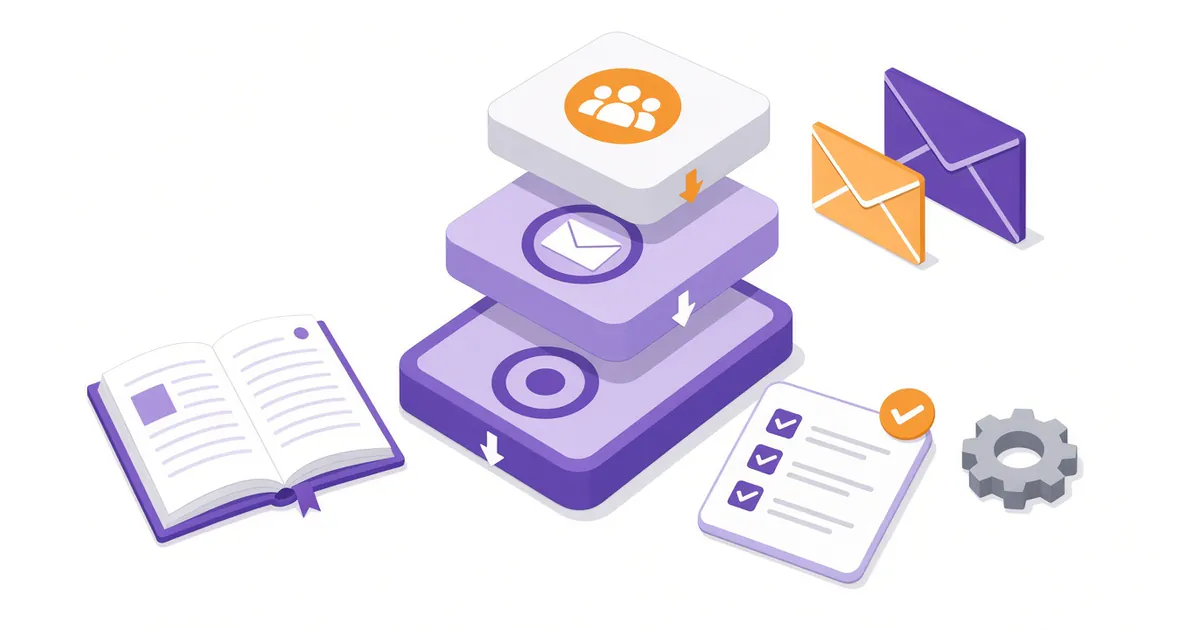
A lead magnet funnel looks like the easiest build in systeme.io. Someone gives you an email address, you give them a checklist or a guide, and they land on your list. systeme.io's own learn page treats two of the choices as separate items on a list: deliver the asset the moment someone opts in, and pick single or double opt-in.
Read the help center's pages together and those two choices turn out to be one. With double opt-in on, systeme.io holds every email and automation until the contact clicks the confirmation link. If that click doesn't come within 24 hours, the contact is deleted. A form's Submit button, meanwhile, saves the contact and sends them straight to the next step. Put the download on that next step and anyone can take the file without confirming, then vanish from your list a day later.
So the first thing to settle is single or double opt-in, before you touch a page. That answer decides whether the thank-you page hands over the file or sends people to their inbox, and everything else in the build follows from it. The bold labels below are the ones systeme.io's help articles print, so you can match them on screen.
Where the file should go
| Delivery | Single opt-in | Double opt-in | What the help center says |
|---|---|---|---|
| Download on the thank-you page | Reaches the lead right after the form | Reaches people who never confirm, before they're deleted | Documented in the downloadable-file and file-hosting articles |
| Link in the delivery email | Sent as soon as the rule fires | Held until the contact confirms | The eBook article: a link "improves email deliverability by keeping the email size small" |
| File attached to the delivery email | Sent, if the file is 5 MB or less | Held until confirmation, 5 MB or less | The deliverability tips ask for "links to your downloadable files instead of attachments" |
Read across the rows and the rule is simple. With single opt-in, deliver on the thank-you page and send the link by email as well, so the lead has a copy to come back to. With double opt-in, leave the file off the thank-you page and use that page to send people to their inbox. The link goes only in the email, which turns the file into the reason to click the confirmation. In both cases, send a link rather than an attachment. The lead-email article offers attachments as a tip, but the deliverability tips say systeme.io would rather you didn't, and the 5 MB cap rules out most video and many designed PDFs anyway.
One gap: the help pages describe the redirect as happening when the form is submitted, and they list only emails and automations as paused under double opt-in. None of them says the redirect waits for confirmation. I read that as the redirect going ahead, which is why the table treats a thank-you download as open to everyone.
Start from the Build an Audience funnel
In the Sites tab, choose Sales funnels and click Create. Name the funnel, choose your domain and currency, and pick Build an Audience. The funnel-creation article describes it as "the simplest funnel structure", made of an opt-in page and a thank-you page, which is all a lead magnet needs.
If you started from a different funnel type, the opt-in page article adds the page: Add step, then Opt-in page in the Type field, then a template, then Edit page.
Build a form that saves the email
The contact-list article gives two ways to collect the address: form fields placed on the page, or a form inside a popup. The form element article adds a third, the Form element, which groups the fields, checkboxes and button in one container. Whichever you use, the form needs at least one field with Email as its input type. The contact-list article is blunt about that: without one, the form won't capture anything.
Then add a Button and set Action when button clicked to Submit form. The button article ties that action to saving the lead as a contact, and the lead-email article says it's also what makes the automation rule fire. Under Do you want to redirect users after contact registration?, choose To the next step so the lead lands on the thank-you page.
Switch on double opt-in, or decide not to
To turn on double opt-in, open the button's settings and tick Do you want to enable double opt-in on this form?. If you built with the Form element, the form element article puts a Double opt-in checkbox under its Actions tab. The setting belongs to each form, not the whole account. You can edit the confirmation message from your profile picture: Settings, then Emails, then Edit confirmation email in the double opt-in section.
That's the decision the rest of the build depends on. The double opt-in article recommends double opt-in for blog forms, for deliverability. It doesn't make it a default, and the pricing page lists Free with "all features", so it isn't a paid extra either.
Host the file so a link can reach it
Upload the file under Assets, then Files. PDFs are listed among the file types it accepts, and once uploaded, a file can be reused across emails, pages and automations.
To get a link you can paste into an email, there are two documented routes:
- A systeme.io link. The file-hosting article places the file on a page (a text link, a clickable image, or a button set to Download file), then has you copy the file's address from the preview. It only works once the file sits on a page. The help center doesn't describe a way to copy the address straight from the file library.
- A cloud link. The eBook article describes uploading the file to Google Drive, OneDrive, Dropbox or a similar service and putting that link in the email body.
With single opt-in, the systeme.io route fits neatly, because the thank-you page is where the file goes anyway. With double opt-in, the cloud link keeps the file off every page in the funnel. Either way, the link can be forwarded: the file-hosting article presents it as something to share.
One rule for the email and the tag
Select the opt-in page in the funnel's list of steps, open the Automation Rules tab and click Add rule. For the trigger, choose Funnel step form subscribed. For the first action, choose Send email and create the email. Put the link in the body. The lead-email article adds that you can insert personalization variables, so the email can greet the contact by name.
Add a second action to the same rule: Add a tag, with a tag named after the lead magnet. That's what lets you tell these contacts apart later. One rule carries both actions, so a single lead magnet uses one rule and one tag. Click Save rule.
If you'd like a short follow-up sequence after the delivery email, the same rule can also take a Subscribe to campaign action, which the email sequence article uses to start a series. Free includes one email campaign.
The form element article also mentions In-editor automations, which let you attach these actions from inside the page editor. The pricing page doesn't say whether those count against the plan's automation rules, so I've counted on them doing so.
The thank-you page, by opt-in mode
Open the thank-you page in the editor.
- Single opt-in: add the file with a text link or a button set to Download file, and a line telling the lead the same link is on its way by email.
- Double opt-in: leave the file off. Add a text line telling people to look for the confirmation email and click it within the day, since that click is what releases the delivery email. The 24-hour window in the double opt-in article is the honest deadline to give them.
Sign up as your own lead
The lead-email article recommends signing up on your own opt-in page to test. The downloadable-file article adds a preview check for the download link: save the page, click the Preview icon and click the link. With double opt-in, the test has two parts. First check that the delivery email doesn't arrive before you confirm, then confirm and check that it does.
One guide fits Free; a shelf of guides doesn't
| Plan | Price | Sales funnels | Automation rules | Tags | Email campaigns | Contacts |
|---|---|---|---|---|---|---|
| Free | $0 | 3 | 1 | 1 | 1 | 2,000 |
| Startup | $17 monthly, $170 yearly | 10 | 10 | 10 | 10 | 5,000 |
Count what the build above used: one funnel, one rule carrying the email and the tag, and one campaign if you add a follow-up. That's a single lead magnet, and Free holds it with room to spare on the 2,000-contact ceiling. A Capterra reviewer who tried the free plan, Lindsay B., a social media manager in restaurants, rated it 5.0 and put the appeal plainly: "I find great it offers free tools for up to 2000 contacts."
The limit you'll meet first isn't contacts, it's the tag. Each new guide needs its own Funnel step form subscribed rule and its own tag, or you can't tell a checklist reader from a template reader later, and Free allows one of each. Eric B., an owner in marketing and advertising, rated systeme.io 4.0 on Capterra in June 2026 and singled out exactly that layer: "Within the sales funnel, having tags and workflows/automation have been so critical."
So the plan question comes down to how many guides you mean to offer. A coach with one starter checklist can stay on Free for as long as the list stays under 2,000. Someone planning a guide per topic, each feeding its own follow-up, needs Startup from the second guide on: 10 rules, 10 tags and 10 campaigns, at $17 monthly or $170 billed yearly, which works out to $14.17 per month. When the second guide is ready, upgrade to Startup; the first guide can run on Free until then.
Cases for handing the file over anyway
Sometimes the double opt-in rule above isn't worth keeping. If the file is something you'd happily post publicly, a thank-you download costs you nothing under double opt-in except the reason to confirm. And if your audience mostly signs up on phones and rarely checks email in that moment, a single opt-in thank-you page that delivers at once may serve them better than a held email. That's a judgment about your readers, and no help article can make it for you.
Building the page itself shouldn't be the slow part. One five-star Trustpilot reviewer, Jula, writing in September 2026, described the builder this way: "With Systeme.io’s drag-and-drop builder, I can create a checkout page, landing page, or freebie in a matter of MINUTES, or at most half an hour." The time goes into the decisions above, not the drag and drop.
FAQ
Can systeme.io send the lead magnet as an attachment? Yes, up to 5 MB. The deliverability tips asks you to send links to downloadable files instead, and the eBook article says a link keeps the email small.
Does double opt-in delay the lead magnet email? Yes. The double opt-in article says all emails and automations are paused until the contact clicks the confirmation link, and unconfirmed contacts are deleted after 24 hours. That's why the delivery email belongs after confirmation rather than on the thank-you page, where the download would reach people who never confirm and are then deleted. Use the thank-you page to tell people the guide arrives once they click the link in the confirmation email.
Can I deliver a lead magnet on the free plan? One, with its own email and tag. A second one needs a second automation rule and tag, and Free allows one of each.
Where should I upload the PDF in systeme.io? Under Assets, then Files. The file manager article lists PDFs among the accepted types, and an uploaded file can be reused in emails, pages and automations.
Can I get a download link without putting the file on a page? The help center doesn't describe one. Its file-hosting article gets the link by placing the file on a page and copying the address from the preview. A Google Drive, OneDrive or Dropbox link is the documented alternative.
How do I test a double opt-in lead magnet? Sign up on your own opt-in page. Check that the delivery email doesn't arrive before you confirm, then confirm and check that it does.
About the author: Tess Morrow is the editorial pen name of the Email MK Tools research team. We haven't built this lead magnet funnel in a live systeme.io account; every step here is the help center's. More about Tess.
Sources
Read on October 9, 2026, from systeme.io's help center:
- Create a funnel
- How to create an opt-in page
- How to build your contact list using a funnel
- How to add a form field and a form element to your page (systeme.io help center)
- How to configure a button
- How to set up double opt-in
- How to manage your files in systeme.io (systeme.io help center)
- How to host and share files on systeme.io
- How to add a downloadable file
- How to automatically send an email when a lead subscribes
- How to automate the sending of an email sequence (email campaign)
- How to sell your eBook
- How to improve the deliverability of my emails (advanced tips)
Also: systeme.io pricing, monthly and yearly, read October 8–9, 2026; Capterra, Systeme.io reviews, read October 9, 2026; Trustpilot, systeme.io reviews, read October 9, 2026.